Image Map

11.29.2014

Free Printable: 2014 Holiday Planner

I've created a free 20 page 2014 holiday planner for y'all as a thank you for being loyal readers for the last 3 years. I've been through a whirl wind of life changes and therefore my blogging has been sporadic. I appreciate that you've continued to follow me and support me through my ups and downs. The planner has more to offer than just what's pictured, so be sure to click on the image below to view the whole file and download to your computer.

This planner is completely free for personal use. If you want to share with others, please do so, but share the link to this blog post. Feel free to pin this post, too! :)

https://drive.google.com/file/d/0BxQmRfgJie0sZ1dsbzlBY2pQYTQ/view?usp=sharing

Also, check out my Etsy sale to save 40% off in my store. I've added some new items in the last week that you're sure to love and through Tuesday you can get them at a discount!

8.13.2014

Bing in the Classroom & Microsoft Educator Network #WindowsChampions


While in Seattle for the Champions Summit in April I was introduced to Bing the the Classroom. I was quick to let the other teachers at my school know about this awesome resource!


Here are some facts on what Bing in the Classroom is all about...

Part of Microsoft’s continued focus on promoting digital literacy in education, Bing in the Classroom is an ongoing program focused on helping kids use technology to inspire and satisfy their curiosity. It provides ad-free, safer, more private search in schools, daily lesson plans that inspire critical thinking, and a rewards program that community members can use to earn tablets for their schools. More information can be found at http://www.bing.com/classroom, and you can track the progress of specific schools at http://www.bing.com/findyourschool.
  • Ad-free, safer, more private search. Bing in the Classroom removes all advertisements from Bing search results, filters adult content, disables the use of searches to send personalized ads, and adds specialized learning features to enhance digital literacy. {Program excludes Bing apps.} Over 4.5 million students in more than 5,000 schools are covered by our enhanced search, with over 35 million ad-free queries served to date.
  • Daily lesson plans. Bing is well known for having a big, beautiful homepage image that changes daily and inspires visitors to explore their world. With Bing in the Classroom, we’ve used that homepage inspiration to create free daily lesson plans that help students learn how to search the Web effectively while inspiring their curiosity.
  • Earn Surfaces with Bing Rewards. The Bing in the Classroom tablet program is an extension of an existing Bing program, Bing Rewards. With Bing Rewards, you can earn credits just by searching the Web on Bing from your browser or phone and for trying out new Bing features. And now, with Bing in the Classroom, you can donate those credits to the school of your choice; Microsoft will pool them with other supporters of that school and, as soon as your school meets the credit minimum, send it a Microsoft Surface tablet with Type Cover. About 60 people using Bing Rewards can earn a tablet for a school in a month.
  • Keep track of your school. Bing in the Classroom offers a page for every school in the U.S. that tells you not only if it is receiving ad-free, safer search but also how many Rewards credits have been donated, by how many people, and how many Surface tablets schools have earned.

I used some of the daily lesson plans with my students last year and they really enjoyed the activities. I love that the lessons require students to use critical thinking to search for their answers.

The Microsoft Educator Network is another resource that I love as a teacher. All of the tools listed on this website are free for teachers to use. Resources include apps, tutorials & guides, Office plug-ins, and more. My favorite guide is OneNote Toolkit for Teachers. OneNote is now free on all devices and can be synced across your devices when you sign in with your Microsoft account. I use OneNote for planning - both at home and at school. I plan out meals/recipes, vacations, to-do lists, etc. at home and plan lessons, projects, collaborate with other teachers, etc. at school. I absolutely love it.

Disclosure: I am a Windows Champions blogger and I received loan of a laptop and tablet, and may receive other equipment from Microsoft to assist me in evaluating Microsoft products and services for my blogging activity.    

8.12.2014

Technology in Education with Microsoft & Parade Magazine #WindowsChampions

Last Tuesday I had the amazing opportunity to sit on a panel at a local Microsoft event with Parade Magazine to chat about technology in education. I absolutely love my career and couldn't imagine doing anything else - blogging and running my small businesses are added perks in my life. Ever since my dad bought our first family PC in 1997, I've been fascinated with technology. It amazes me to see the huge changes that have come in tech just in my lifetime thus far. From overhead projectors to SmartBoards to tablets and TVs - technology has made teaching even better.

But with all of these rapid changes in technology, is tech in education a good thing or a burden? This was the biggest question we faced during our event in Salt Lake City last week. Maggie Murphy, editor-in-chief of Parade Magazine, was the facilitator of our panel conversation. In our hour together, a lot was discussed, pondered, and learned.

One of the biggest issues being faced in education - as determined through our conversation, through my communication with other teachers, and seen in schools by tech specialists - is not knowing what to do with the devices schools buy for classroom use. As technology advances, schools are upgrading and just handing over the new devices to teachers and telling them to figure it out. Realistically, the issue here is that the devices that we're provided with are school owned. Therefore they can only be used for educational purposes, which is great, but without direction on how to use these devices, teachers don't know what to do with them. Microsoft Stores have tech teachers that will visit schools and teach teachers how to use the devices their school is using.

Another issue being faced by teachers is obtaining the technology they need in their classroom. Sure, schools are beginning to provide more and more tech like laptops and tablets in classrooms, but some teachers need listening centers {which can be created from an old smartphone or MP3 player} or eReaders for literacy centers. {These things can be donated to classrooms as a tax write-off.} Microsoft has a free way to earn Surface tablets for your school by using Bing search rewards. Every 500 points you earn can be donated to the school of your choice to earn them a Surface.

Overall, we can all agree that technology in education - both at school and at home - is something that can be a great resource, if we know how to utilize it to it's full potential. Tomorrow I'll be back with another post on Bing in the Classroom and Office - with tips on how to use these amazing resources!

Disclosure: I am a Windows Champions blogger and I received loan of a laptop and tablet, and may receive other equipment from Microsoft to assist me in evaluating Microsoft products and services for my blogging activity.    

7.08.2014

Free Printable: 2014-2015 Chevron Calendars {New Design!}

I started receiving requests back in January for the 2015 calendars to be published. Uhh...what? I'm organized, sure, but not already planning for the following year. To those of you that are that planned ahead, I commend you.

Since I changed the design on the 2015 calendar, I included the rest of the months for 2014 in the same format. Newly designed calendars for my Etsy store {in vertical and horizontal} will be uploaded soon and will be able to be typed onto this year. When they're ready, I'll post.

This calendar is completely free for personal use. If you want to share with others, please do so, but share the link to this blog post. Feel free to pin this post, too! :)

http://bit.ly/1jlRfNW

http://bit.ly/1jlRfNW

http://bit.ly/1jlRfNW

7.01.2014

Tech Tuesday: Reclaim Your Facebook Privacy


Being a teacher, there are a lot of things I love to share online with my friends and family that I don't necessarily want my students or their families seeing. I'm a pretty open book and choose to live my life in a way that I'm not ashamed of anything that I choose to do. But there are some things that students and their families just don't need access to in my life.

{source}

It's so easy to go on to Facebook and type in a person's name and find them instantly. If the person's privacy isn't set in a way that "locks things down", then you can see an awful lot of who they really are - pictures, location check-ins, their wall posts, things that others post on their wall or tag them in, etc.

Two years ago when I moved to my charter school and I found out who my new teammate was, I looked him up on Facebook. He was coming to Utah from Michigan and I was curious as to how long he'd been teaching, what he was like, if we'd be a good team, etc. He had no idea that his privacy was pretty much wide open on his Facebook page. The pictures I saw...the wall posts and comments...I thought for sure I wasn't going to get along with him. Everything was right there for the world to see from his college years.

Once I met him in person and we worked together, I realized he was a completely different person from what he was showing on Facebook. {You can't judge a book by it's cover...} I told him that I had creeped on his Facebook and everything that I had seen he may not want others to easily access, so he should consider changing his privacy settings. He had no idea that it was open like that, and he was glad that I had told him. Being a first year teacher, at the time, he didn't want parents of his students looking him up and seeing everything that I had seen. It gives the wrong impression. Sure, now that I know him better I understand all of it and it's him, but not in the way that I had initially viewed and interpreted it.

Did you know that you can easily view your Facebook profile page as "public" with two clicks? While on your main profile page, click the three dots next to "View Activity Log" - located at the bottom right corner of your cover photo. Then click "View As..."

This is my view of my own profile.

Once you're in the "View As..." mode, you'll see your profile as the public does. You can also view your profile as a specific person {that you're currently "friends" with on Facebook}.


As you can see, I have my profile completely locked down so the public can't see anything. For whatever reason, Facebook makes you keep your current cover photo public - so if you have any sort of info in the caption section, location, tagged people, etc., all of that will be publicly available to view. Once you change your cover photo, you can manually change "past photos" to "Friends only".

To get to your Privacy settings, click the lock icon in the top right corner of your Facebook page. It will bring a drop down menu like the one below. Click "See More Settings"...


  • Who can see your future posts? - This allows you to change the default setting for when you write a "status update" post - whether it's adding pictures, just writing text, or sharing a link.
  • Review all your posts & things you're tagged in - When you view your Activity Log, it shows you everything that you've posted, that you're tagged in, that you've liked or commented on, etc. The Activity Log shows you how everything is set as far as privacy settings go. Anything you like will be public, meaning that if you like a photo on a blog's Facebook page, others will be able to see that you liked it if they view the same photo.
  • Limit the audience for posts you've shared with friends of friends or Public? -  You may have been posting everything publicly since you first joined Facebook and now are wishing that you hadn't. This setting allows you to change all of your past posts to "Friends" with one click. {This does not include photos.}
  • Who can send your friend requests? - You have two options here... Everyone or Friends of Friends
  • Whose messages do I want filtered into my inbox? - Basic Filtering is recommended {by Facebook} here, but if you get a lot of messages from people you don't know and it's bugging you, you may want to change it to Strict Filtering.
  • Who can look you up using the email address you provided? / Who can look you up using the phone number you provided? - If you don't know what email and phone number you used to sign up, you can click on "General" on the left menu to view this information.
  • Do you want other search engines to link to your timeline? - Personally, I don't want someone to Google my name and find my Facebook page. Not that it matters since it's locked down, but it's just not the first result I want listed if a potential employer is doing an internet search on me. I'd rather them find my LinkedIn page or something else that shows my character in a positive, professional light.


  • Who can post on your timeline? - You have two choices - Friends or Only Me.
  • Review posts friends tag you in before they appear on your timeline? - If you have friends on Facebook that take photos of you that you don't want posted on Facebook or that check you in everywhere you go and you don't want the world to know you're not home, you may want to turn this feature on. It will change your tagging settings so that you review what's okay and what's not before it's posted on your Facebook timeline.
  • Review what other people see on your timeline. - This shows you your profile as the public, as I showed you in Step #1 above.
  • Who can see posts you've been tagged in on your timeline? - If you're okay with people tagging you, but you don't want others to see it on your timeline, then you can change this setting to "Only Me". You'll see the photos and posts that others tag you in, but your friends won't {unless they're friends with the person who tagged you}. You can also change it to "Friends of Friends" or "Everyone".
  • Who can see what others post on your timeline? - If you're cool with others posting links, photos, comments, etc. on your timeline, but don't want it shared with your friends, you can change this to "Only Me". Then you'll get the message, but others won't.
  • Review tags people add to your own posts before the tags appear on Facebook? - If this option is off, it allows your friends to tag themselves or others in photos and/or posts that you put on Facebook. If you turn this option on, you'll receive a notification when someone attempts to tag themselves or others, and then you have the option to accept or decline the tag.
  • When you're tagged in a post, who do you want to add to the audience if they aren't already in it? - Basically this setting allows your friends to see what you've been tagged in. Or you can change it to "Only Me".
  • Who sees tag suggestions when photos that look like you are uploaded? - Two choices - "Friends" or "No One". What this setting does is allow others to automatically tag you when they upload photos to albums on Facebook if the picture looks like you. If you have photo tagging on, people can still tag you even if you put "No One" as your setting, it just won't automatically suggest for them to tag you while uploading.


  • Who Can Follow Me - Following a person is just like following a Facebook page. It puts their post updates in your news feed. Personally, the last thing I want is "Everyone" to be able to "Follow" me and see everything that I'm doing, especially without being "friends" with them. That is just a whole new creep factor in my opinion.


A lot of websites and phone/tablet apps give you the option to sign in with Facebook now instead of creating an account. It's definitely a time-saver and one less login to remember. I, personally, love the ability to sign in with Facebook. But sometimes when I join something, I decide that it's not something I want to use and I don't want them to access to my information anymore. Under the App Settings section, you can change your settings and delete linked accounts.


If you click "Edit" for an app, you can see all of your options as to how the app uses your Facebook information and access to your account.

Have you ever used Facebook to sign up for something and they ask "Can we post to Facebook on your behalf?" and you accidentally clicked "Accept"? Here is where you can revoke that access you accidentally allowed.


For any albums that you create on Facebook, you can easily change the default privacy by viewing your Albums and clicking on the icon in the bottom right corner of the album. If you currently have a world icon, it means that the album is currently Public. If the album has the silhouette icon, it means it's currently only viewable to friends. You can also customize if you have lists set up for your friends. For example, I have the following lists: friends, family, teachers, blogging friends. If I only want to share an album with family, I can do so by customizing this setting for a specific photo album.

Those with a gear icon cannot be changed so easily - each picture has to be changed individually because you either uploaded it from Instagram or your phone {Mobile Uploads}, or it's a Profile Picture. [Side Note: When you change your profile picture to "Friends", it cannot be clicked on by anyone who is not your friend {anyone who's considered "Public"}.]

Any photos that are currently public will show up on your timeline in the View As Public view {from step 1}.


Everything that gives you an option to have your information/posts/tags/etc. public to "Everyone" or "Friends of Friends" are all settings that allow your Facebook information to be viewed by others who you may not be "friends" with. It's all up to you, of course, but I've had a lot of people - mostly family and friends - tell me that they had no clue what kind of information they were publicly showing...even if it was just to "friends of friends".

I hope that this post was insightful! Have a fabulous week!

6.30.2014

6.14.2014

Countdown to Summer Giveaway - Winner Chooses 3 Prizes!

summer-giveaway
I'm participating in the Countdown to Summer Giveaway, hosted by Pretty My Party, Mom Spark, Sassy Steals, and a group of awesome bloggers!

Summer is definitely my favorite time of year! The vacations, relaxation, hot weather, swimming...I could go on and on! To celebrate summer, I've teamed up with some awesome bloggers and businesses to bring you the best summer giveaway ever! One winner will get to choose 3 (yes 3!) of the prizes listed above! To see the full list of giveaway sponsors, please visit the Rafflecopter entry form below.

Freebie Finding Mom, Cloudy With A Chance of Wine, Play.Party.Pin, Gimmie Freebies, Where the Green Grass Grows Designs, B.Lovely Events, Trish's Design Studio, Design Dazzle, An Alli Event, Pick Cake Plate, A Delightsome Life, The Nest Effect, NEPA Mom, Punk n Pie Couture, Karina Pires Photography, Bits n Pieces Events

COUNTDOWN TO SUMMER GIVEAWAY!
June 13, 2014 at 12 a.m. EST to June 21, 2014 at 11:59 p.m. EST
Open Worldwide
Prizes: 1 winner will choose 3 prizes: Inflatable Water Park, Canon Digital Camera, iPad Mini, or $500 PayPal cash.
Eligibility and Rules: NO PURCHASE NECESSARY TO ENTER OR WIN. A PURCHASE DOES NOT IMPROVE YOUR CHANCES OF WINNING. VOID WHERE PROHIBITED BY LAW. This giveaway is open to individuals 18 and older. The winner will be chosen randomly through the Rafflecopter form. It is the sole responsibility of the winner to adhere to all laws, which includes payments to any governing tax body.
Winner Selection: The winner of the giveaway will be selected in a random drawing through Rafflecopter from among all eligible entries received throughout the promotion period. The random drawing will be conducted within 48 hours of the closing of the giveaway by Pretty My Party or its designated representatives, whose decisions are final. Odds of winning will vary depending on the number of eligible entries received. Winner will be notified by email at hello@prettymyparty.com. Potential winner must accept the prizes by email as directed by Pretty My Party within 48 hours of notification. Any winner notification not responded to or returned as deliverable may result in prize forfeiture. The potential prize winner may be required to sign and return an affidavit of eligibility and release of liability, and a Publicity Release (collectively “the Prize Claim Documents”).
Rafflecopter Disclaimer: This promotion is powered by Rafflecopter. Metric Feat, LLC (“Rafflecopter”) does not sponsor, administer or endorse this promotion. By entering this giveaway, participants agree to Rafflecopter’s Privacy Policy.
Social Media Disclaimer: Entrants should understand that they are providing their information to the sponsors of the giveaway and not to Facebook, Pinterest, Twitter, Instagram or Google+. This promotion is in no way sponsored, endorsed or administered by, or associated with any of these social media sites.
Disclaimer: This giveaway is blog sponsored and is in no way associated with any of the brands and/or products listed above. If there are any questions, please email hello@prettymyparty.com.
PLEASE USE THE RAFFLECOPTER FORM BELOW TO ENTER
The more entries you complete on the Rafflecopter form, the higher your chances are of winning. If you don’t have time to fill out all of the entries you may come back and complete any entries that you may have missed. Good luck!
a Rafflecopter giveaway

6.13.2014

Friday Favorite: Next Issue


I love reading magazines but can't stand when I don't have the time for them and they stack up. When the stack gets to be two or more months of magazines high, I usually just throw them out. {Those that I can take to school for projects, I do, as long as they're "clean".} I feel like I'm wasting money throwing them away.

http://bit.ly/1oQERoF


Last year I discovered Next Issue and haven't looked back. Next Issue is a subscription service that gives you unlimited access to over 135 magazines. I love that I can view back issues that I may have missed and I can access my subscription from all of my devices - Android, iPad, and Windows 8.


I currently have 30 magazines that I get the updates for on my app. My favorites are ShopSmart {which I always felt was a very expensive print subscription for only 10 issues}, Better Homes & Gardens, Do It Yourself, HGTV Magazine, Real Simple, Self, & PC World. I have my favorites set up to automatically download new issues. All of the others will download the current issue when I click on it. Any downloaded issues can be accessed offline, so you can read them when you don't have a connection - like on an airplane. What's better than having several of your favorite magazines at your fingertips on a long flight without adding the extra weight to your carry on?


Pricing is $9.99 a month for unlimited basic {127 magazines to choose from - this is the one I subscribe to} or $14.99 a month for unlimited premium {137 magazines to choose from - adds selections like People, Sports Illustrated, Entertainment, Time, & more}.

Interested in trying Next Issue? Sign up and receive a free 60 day trial to decide if Next Issue is for you.

6.11.2014

40 Day Summer Challenge: Cleaning the Oven


Last Monday I posted about my 40 Day Summer Cleaning & Organizing Challenge. I've already crossed off 7 items. Today I'm blogging about how I clean my oven without using harsh chemicals. This was the first thing I crossed off the list. I hadn't cleaned my oven since I moved into my apartment last July. It was starting to smell awful when I'd turn it on...like something was burning. Not good.

I used to hate cleaning my oven. The nasty chemicals that you'd have to spray after preheating the oven and blah blah blah...so gross. Then I discovered Shaklee Scour Off. All you have to do is wet a sponge or cloth and wipe the putty all over the areas that need to be cleaned. Let it sit for 10 minutes and wipe off. If you use a scour pad, the tougher gunk comes off with easily with a little bit of scrubbing. Check out my before and after photos below.


6.06.2014

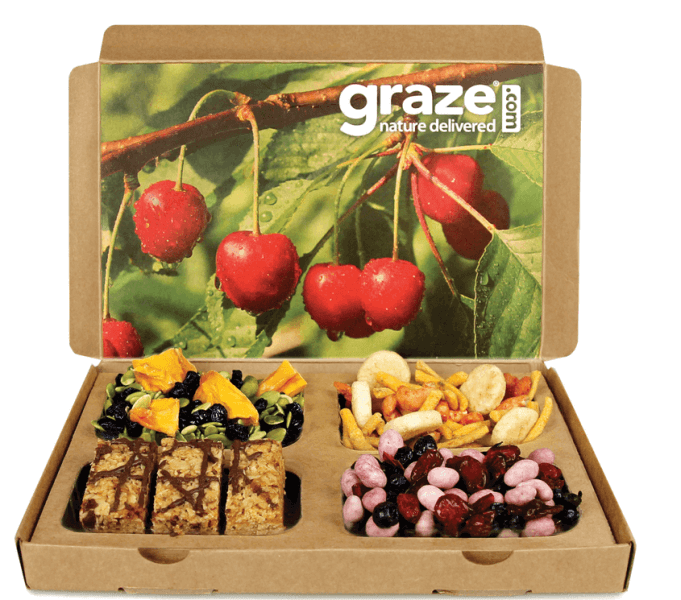
Friday Favorite: Graze.com


I was recently introduced to Graze.com by a fellow teacher at my school. I'm so happy I decided to try it out for myself!


Graze is a subscription service {with no commitment} that specializes in healthy, portion controlled snacks. I'm always cautious with subscription services because I don't want to be "locked in" to something that I potentially won't like. Because I signed up through my friend, I received my first box free - no strings attached. I loved it so much that I decided to stay subscribed. It's just $6 a box with free shipping.

Once you're subscribed you can go into your account and customize your box. I'm able to rate the items I receive so they get to know my taste and can send things similar to those that I rate "like" and "love". I just received my second box this week and love everything I've tried so far.

Each nibble and calorie counter box comes with 4 snacks. {I get the nibble box.} You also get to choose how often you want to receive your Graze boxes - every week or every 2 weeks. Also, if you decide you want to cancel, you can easily do so online, but because they prepare boxes in advance, it has to be at least a week before your next shipment.

Interested in trying it Graze? If you sign up with my promo code, you can get your 1st and 5th box free! The code is: QDV7G25RP

If you decide to try Graze, let me know what you think! If you already have tried it, I'd love your feedback, too. :)

6.05.2014

Microsoft Champions Summit Spring 2014 - Day 3 #WindowsChampions #ChampionsSummit


On Tuesday we had a few more informational sessions in the morning before heading out for some fun sightseeing!

I learned a lot in the session on OneNote collaboration. We used our Windows Phones that we were given on Sunday to complete a scavenger hunt in the Ballard neighborhood. We were given a list of items/places to go search for and take a photo of and place in our shared OneNote notebook. It was pretty cool to work with others on the same notebook and instantly see the changes pop up before me on my phone every time they'd add a picture.

Our afternoon consisted of a Brewery Tour around the Ballard neighborhood with Road Dogs Tours. Only half attended this, while the others went to a waterfall. We had an absolute blast and were able to visit 4 different breweries in the area.


Dinner at Bastille was delicious and the perfect last meal together.


Those of us that didn't have to get up super early for a flight went to King's Hardware to play skee-ball until the wee hours of the morning.


What a trip with amazing memories and new friends made!

Thank you to Microsoft and the Windows Champions/Office Champions teams for making all of this possible.

Disclosure: I am a Windows Champions blogger and I received loan of a laptop and tablet, and may receive other equipment from Microsoft to assist me in evaluating Microsoft products and services for my blogging activity. I was sent to Seattle to attend the Champions Summit and received products while attending the summit. All opinions expressed are my own.

6.04.2014

Microsoft Champions Summit Spring 2014 - Day 2 #WindowsChampions #ChampionsSummit


On Monday we traveled to Redmond to visit the Microsoft Campus. I was completely blown away by how beautiful it is.


First we visited Building 99 - Microsoft Research.


We learned about virtual assistants located in the research building. This directions robot uses Microsoft Kinect technology to recognize when someone steps up to him to ask for directions. You could ask for directions to a specific room or give a person's name who works there. If you were looking for someone specific, he would let them know that you were on your way to them. It was pretty neat.


Next we met Michael Cohen, creator of Gigapixel ArtZoom. He explained his project to us and gave us a demo of how it works. Basically, they took high quality photos as a 360 panorama of Seattle. You can zoom in to see areas of Seattle up close {from very far away} and view the area as if it were right in front of you. There are "hidden" performers, acrobats, and artists throughout the panorama. When you find them, you can click on them and view a short clip about their work. It's a pretty amazing concept. Since launching the website, they've been approached by other cities around the world to create a Gigapixel ArtZoom. Check it out!


We headed to a space called The Garage on the Microsoft Campus next for lunch and informational sessions. We had 6 hours of sessions, so I'm just going to sum up my favorites for you.

My favorite session was about Bing internet search. First of all - did you know that you can earn credits for Bing Rewards just by searching? You can use those credits for a variety of items. I used my first redemption to get 100 GB of extra storage in my OneDrive account. Now I'm saving up for a Surface tablet for my school. But what was most informative for me was about Bing in the Classroom. Here's the facts on what Bing in the Classroom is all about...
Part of Microsoft’s continued focus on promoting digital literacy in education, Bing in the Classroom is an ongoing program focused on helping kids use technology to inspire and satisfy their curiosity. It provides ad-free, safer, more private search in schools, daily lesson plans that inspire critical thinking, and a rewards program that community members can use to earn tablets for their schools. More information can be found at http://www.bing.com/classroom, and you can track the progress of specific schools at http://www.bing.com/findyourschool.
  • Ad-free, safer, more private search. Bing in the Classroom removes all advertisements from Bing search results, filters adult content, disables the use of searches to send personalized ads, and adds specialized learning features to enhance digital literacy. {Program excludes Bing apps.} Over 4.5 million students in more than 5,000 schools are covered by our enhanced search, with over 35 million ad-free queries served to date.
  • Daily lesson plans. Bing is well known for having a big, beautiful homepage image that changes daily and inspires visitors to explore their world. With Bing in the Classroom, we’ve used that homepage inspiration to create free daily lesson plans that help students learn how to search the Web effectively while inspiring their curiosity.
  • Earn Surfaces with Bing Rewards. The Bing in the Classroom tablet program is an extension of an existing Bing program, Bing Rewards. With Bing Rewards, you can earn credits just by searching the Web on Bing from your browser or phone and for trying out new Bing features. And now, with Bing in the Classroom, you can donate those credits to the school of your choice; Microsoft will pool them with other supporters of that school and, as soon as your school meets the credit minimum, send it a Microsoft Surface tablet with Type Cover. About 60 people using Bing Rewards can earn a tablet for a school in a month.
  • Keep track of your school. Bing in the Classroom offers a page for every school in the U.S. that tells you not only if it is receiving ad-free, safer search but also how many Rewards credits have been donated, by how many people, and how many Surface tablets schools have earned.
The next session was on Skype. On April 28 Skype made group video calling free for all! That was the big announcement of that session, and I was given a sneak peak of some upcoming features that will be released soon. But my lips are sealed! :)

The session on Digital Spring Cleaning was awesome. I learned a lot about how Outlook.com makes email easy to deal with. Some awesome features that Outlook has are sweep, an unsubscribe link at the bottom of every newsletter email {that way you can for sure unsubscribe in case the company just happens to not include a link in the email}, rules, flags, floating icons to delete/flag/mark as unread. {I'll write a special post on Outlook later to explain all of this in more detail.}

I also learned how OneNote can make your life so much easier by creating a place to catch all of your notes, recipes, to-dos, travel plans, etc. Did you know that OneNote is now free for everyone to download and use? It's available for Windows 7, Windows 8, Windows Phone, Mac, iPad, iPhone, & Android. The best part is that it syncs across all of your devices. Planning a home renovation project? Use OneNote to create a plan with pictures, notes, URLs, etc. on your computer and then access it from your phone or tablet while shopping for supplies. Very handy!

The image below {click to view larger size} sums up everything I learned in the Digital Spring Cleaning session. The facts are actually a pretty interesting read.

{click image to view larger size}
Come back tomorrow for the final post to see what I did on my last {full} day in Seattle!

Disclosure: I am a Windows Champions blogger and I received loan of a laptop and tablet, and may receive other equipment from Microsoft to assist me in evaluating Microsoft products and services for my blogging activity. I was sent to Seattle to attend the Champions Summit and received products while attending the summit. All opinions expressed are my own.

6.03.2014

Microsoft Champions Summit Spring 2014 - Day 1 #WindowsChampions #ChampionsSummit


As you may know, I'm a Windows Champion and work with Microsoft to bring you the latest and greatest information from Microsoft regarding Windows 8 and other Microsoft products. I've been working with Microsoft for the last year and a half and absolutely love this program that I'm so lucky to be a part of. I was invited to Seattle at the end of April to visit the Microsoft Campus and learn more about the company, while experiencing the state of Washington for the first time.

On Sunday when I arrived, I was picked up by a chauffeur {I felt so fancy} at the airport and taken to the gorgeous Hotel Ballard where I was greeted by my fabulous Windows Champions contact, Madison. It was so nice to finally put a face to a name.

I was given an amazing welcome package that included a new Windows Phone {Nokia Lumia 928}. I spent my afternoon playing around with the phone and getting to know other bloggers as they arrived.

After lunch, a few of us decided to go to Golden Gardens Park to see Seattle's beach. It was absolutely beautiful, but very windy.


Back at Hotel Ballard, cocktail hour and dinner were fabulous. We were introduced to some more familiar names and I got to meet and mingle with more bloggers.


Come back tomorrow for day 2 to see what I learned at the Microsoft Campus. I attended some very informative sessions, so I have a lot to share!

Disclosure: I am a Windows Champions blogger and I received loan of a laptop and tablet, and may receive other equipment from Microsoft to assist me in evaluating Microsoft products and services for my blogging activity. I was sent to Seattle to attend the Champions Summit and received products while attending the summit. All opinions expressed are my own.

LinkWithin

Related Posts Plugin for WordPress, Blogger...