Image Map
Showing posts with label digital clutter. Show all posts

4.08.2013

Get Organized with Microsoft OneNote #WindowsChampions


Microsoft OneNote is a program I've been using on my computer for years. I used it in college to take notes in my classes. I use it now to organize information I may need when online or away from home, but want to keep secure. I keep some of my notebooks locked with a password for security.

The possibilities for organizing with OneNote are limitless! As the image above shows, you can easily plan travel within a notebook. For a free, travel notebook template, click here. With the new 2013 edition, sharing with others and syncing with your Skydrive account couldn't be easier. Everything can be done right in the program.

Planning a wedding? There's a template for that. Need a DIY home renovation notebook? There's a template for that, too!


The Send to OneNote Tool makes it easy to clip information from the web and paste it into any of your notebooks. Think - recipes, pictures, maps, directions, an article to save for later reference, and much more!

If you have a Windows 8 touch-screen PC or tablet with OneNote 2013, you can easily hand write notes or draw pictures into notebooks.


Microsoft Office 2013 is now available online for purchase. It is only compatible with Windows 7 & 8. I upgraded before becoming a Windows Champion because I'm one of those people who always has to have the latest Microsoft Office version. Usually I wonder why I do it, because it seems like not much changes. This time, I was so glad I did. I really, truly love the 2013 version. Everything runs easily and my documents look amazing.

Office 365 Home Premium is also now available. Try a one month trial for free. Students can try Office 365 free for 3 months. The OneNote app for Windows 8 or RT is available here.

Do you use Microsoft OneNote for organizing information on your computer?

Disclosure: I am a Windows Champions blogger and I received loan of a laptop and may receive other equipment from Microsoft to assist me in evaluating Microsoft products and services for my blogging activity. 

3.21.2012

Have 10 Minutes? Uninstall Junk From Your PC

This post is for PC users. (Sorry Apple lovers.) I am addicted to technology - more specifically, PCs. I'm not an Apple fan at all - not even for an iPod. I own a PC, a Microsoft Zune (MP3 player), a Motorola Droid Razr, a Kindle, and a Kindle Fire. No Apples allowed in this house (so glad my husband agrees). But this post is not to talk about my dislike for Apple. This post is for a quick 10 minute cleaning of your PC if you have one.
I bought my HP Pavilion dm4 laptop in October 2010. I absolutely love it. I was a Dell girl for a really long time - until the last one I had. Then I bought my HP printer, loved it, and decided to go for an HP laptop. I bought it at Staples on an awesome sale. No regrets.

One thing that is totally lame about getting a new computer is all of the extra junk they preinstall for you. Yeah, thanks for the 30-day free trial of AOL and other crap I don't need or want. If it were up to me, I'd get a new computer naked...nothing on it except the basics for the hardware drivers that I need (for sound, wireless, etc.).

Now since my computer is about 1.5 years old, most of my preinstalled crap is gone. But I'm secretly a software/lame game junkie. I like to try out all sorts of software, even though I rarely keep/use it. And I play some of the lamest games for adults to play (according to my husband, who is really one to talk...playing Batman now I as I type...haha). Anyways... Luckily, my computer is still running like a dream, but I know it's time to just take a sweep through (like I did under my bathroom sink the other day) and start uninstalling.

Start >> Control Panel >> Programs >> Uninstall -- I have 129 programs installed. Funny since I only use about 4 of them.


Now, if you're looking at your list of installed programs and you're completely clueless as to what something is, don't just uninstall it. It could be something important. Google the software name to see what it is. Chances are, if it has your computer brand (such as HP) in the name, it could be something important - but most of the time even that stuff is junk. Anything with Intel in the name is important, so don't uninstall it. Java is needed for the internet. Microsoft and/or Windows could be important - unless it's a free trial that you're not going to use or that is expired. (When your computer runs Windows Updates, most of what it installs is made by Microsoft and/or Windows.) When in doubt, leave it alone.

While some of my software is uninstalling, I'm running Disk Cleanup. This comes on PCs and safely cleans up junk. (Start >> Programs >> Accessories >> System Tools) I can free 120 MB by running this. If you've never run this program before, or it's been awhile, you'll free a lot more space! I run this a few times a month, so that's why my number is relatively low. If you're unsure about getting rid of any of these things, simply uncheck the box. )I always check all of the boxes.) If you click on each file name, you'll get a description below that tells you what the file includes.


When completed, check to see if your computer has any Windows Updates. (Start >> Programs >> Windows Update) I have one important update and one optional update. The optional update is for my laptop's touchpad software. Of course I'll update that as well.


Overall it took me 10 minutes to uninstall, use the Disk Cleaner, and run Windows Update. I uninstalled 5 programs, which were actually pretty hefty in size.

If you take the time to quickly do these things today - and then once a month - your computer will run a lot smoother. Good luck! =]

10.18.2011

October Project: My Favorite Digital Clutter Organizers

Love this post and want to see more like it? Each month through 2012 I will be tackling different topics and creating free printables to go along with the project. View the projects here.


Today I'm going to share some of my favorite digital clutter organizers. Everything I'm going to show you I own and use. Links to items are provided if available.

Store It
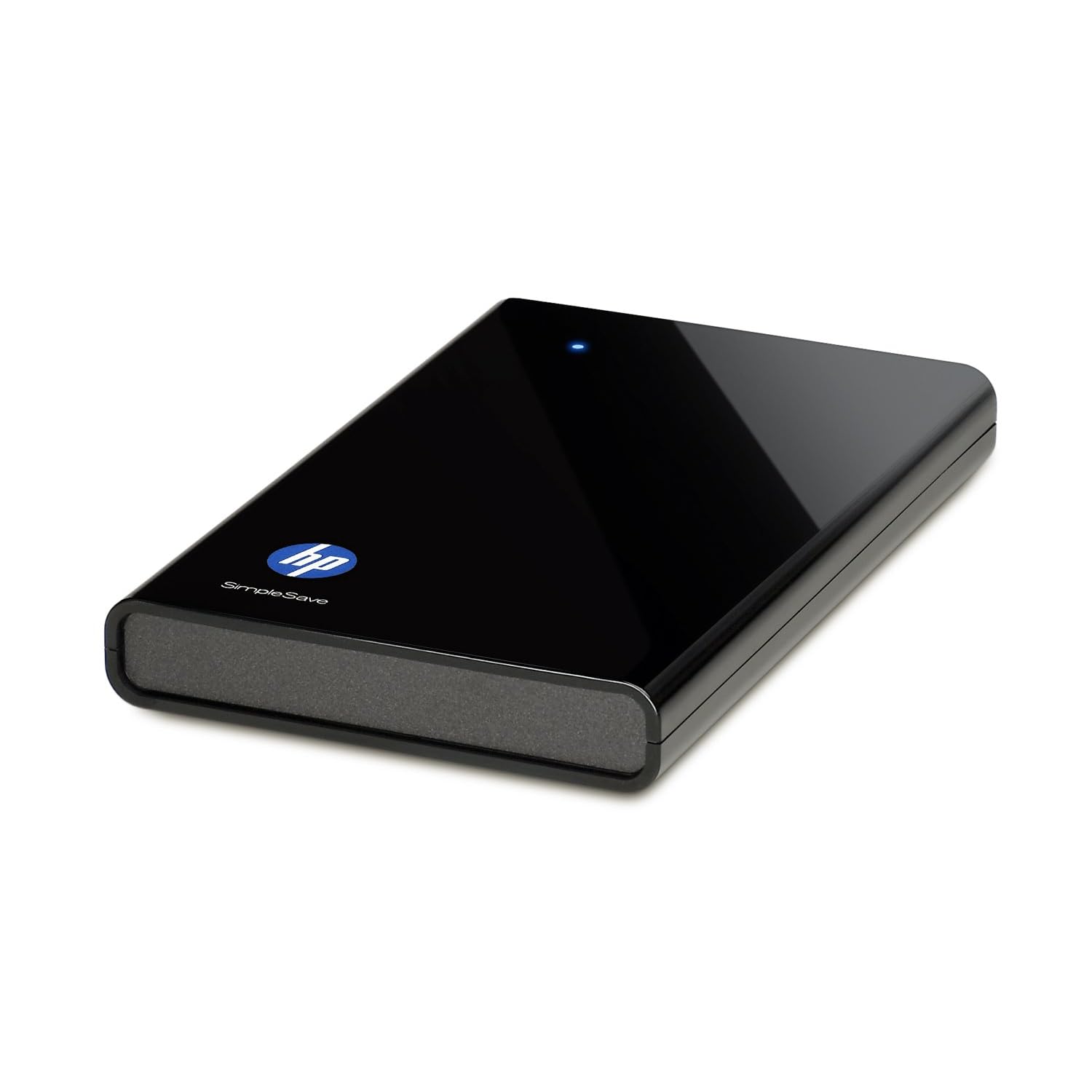
HP SimpleSave 320 GB External Hard Drive $59.99
An external hard drive is the best thing ever to happen to digital photographers/teachers/computer geniuses/anyone who's ever used a computer and has important files. Back.it.up. I love mine because a) I've paid once, I'm not paying every year for "cloud" storage; b) I keep it in my safe in case of disaster; c) it's simple (as is in the name) to use - plug it in and let it run in the background. Yes, I own this very one. Bought mine at Sam's Club though -- and didn't get as sweet of a deal as Amazon's selling it for now. But anyways...best idea ever. If your computer ever crashes, say goodbye to everything you've ever loved about your computer -- goodbye photos, music, videos, internet favorites (yeah, you can back those up too), files, etc. I back things up every week or two - depending on how much important stuff I've accumulated...or not.

My old laptop didn't have a decent amount of memory, so an external hard drive was a savior. It allowed me to keep older photos on it and delete them off my PC so I had more room. Plus, when I got my new laptop, it was so easy to transfer everything over...because it was already backed up. (Are you seeing the benefits?)

Cons? It can lead to massive file hoarding if you don't keep it under control. Things you've deleted off your computer will still stay on your external hard drive when you sync it every time. It's good because you can use it to store things you don't want on your PC, but it's bad because if you solely use it to back up things, you'll be backing up what's been deleted as well if you don't take the time to spring clean your drive. (I will usually delete everything off the drive once a year and resync from scratch since I no longer use it to solely store files.)

Curious about the cloud route? I posted about it last week. Good option if you'd rather have your files accessible wherever you can use the internet.

Make Start Up Faster

Soluto - free

I use Soluto to monitor my boot (start up) time. Before using Soluto my boot time was 3:14. Now my boot time is 0:57. How? I chopped my boot! They scan your start up programs and show you what you can turn off or pause at start up - meaning it either won't start at all, or it will start a few minutes after your computer is running. This allows you to get started on your computer a lot faster because the important stuff loads first (and fast). And no worries - if you chose to turn off something and you want it back on, it saves all of your "removed applications" in the program so you can change your mind.

Make Internet Browsing Faster and Easier

#1 suggestion - don't use Internet Explorer. I love Microsoft, but don't care for their browser. It's way too slow and always has so many issues. Mozilla Firefox has always been my favorite until recently when they decided to roll out several updates within 2 months, making things more complicated. The only reason I'm still using Firefox is because I'm addicted to some of the add-ons they have that Google Chrome doesn't have yet. Google Chrome is an excellent "light" choice. Very simple to use and runs quickly and efficiently. (I don't know anything about Mac, but I've heard Safari is pretty good.)

Roboform $9.95/year
I use Roboform to save all of my usernames and passwords for me. It makes internet browsing so much easier and eliminates the need of 500 post-it notes all over keeping my log ins straight. It also has an option to save all of your personal info (name, address, phone number, email, etc.) and fill forms for registration pages. This is definitely a must for me since I sign up for sweepstakes a lot. All information is stored on my computer, so I can back it up on my external hard drive. You can password protect all of your info with a master password if you so choose, so it can be as secure as you want.

LastPass is another password manager. I've heard good things, but haven't tried it. It's free, but you have to upgrade ($12/year) for more features such as access to back up of your info.

Plan Your Life Digitally

Cozi - free

Not a fan of physical planners? I use Cozi (as well as my physical planner) to remember birthdays and other important events/reminders. Cozi is free and has an awesome feature that will send you an email or text message reminder...and that's my favorite things about it. (I set up text message reminders for birthdays, one week in advance so I don't forget to mail out gifts/cards to family in PA.) You can watch a video on Digitwirl for the full scoop on all of Cozi's features.

Choose a Good Email Host

Gmail - free
Sorry Hotmail and Yahoo lovers, Gmail wins on this one. I've had an email address on all of the different email hosting websites. (I was curious back in the day and ended up with Hotmail, which declined quickly.) While I do still get spam mail from time to time, Gmail generally will catch it and put it in the spam folder. Hotmail never did a good job with this and I was receiving just as much spam as I was wanted email. (Talk about time consuming.) Gmail has all sorts of features: labels, search, lots of space, conversation view (which I could never go without again), priority inbox, labs, etc. I think Gmail deserves it's own post, seriously. (I'll write one this week.) Until then, check out all of it's awesomeness here.

That's all I've got for now. I don't want to suggest a ton of software applications for you to clog up your computer with. These are the basics that I find important to keeping me digitally organized. If you have any PC-related questions, please feel free to email me. I'm a self-taught PC geek and have a ton of resources that I can use to answer your questions. =]

Have a great Tuesday night...too bad it'll be Glee free. =[

I don't know if I can hold out until November 1st...

10.12.2011

October Project: Conquer Computer Digital Clutter


Last Monday I introduced my project for this month: paper & digital clutter. I spent last week looking for ways to conquer paper and digital clutter so that I could start spending my time more productively in other ways.

Some of these ideas that I'm going to post about may seem obvious, but as obvious as they are, it's not something I did until this week. I needed the focus to actually follow through with these "ideas" and that's what this month long project is doing for me. It's giving me accountability and focus by blogging about it, and I really hope I'm inspiring you to do the same.


I started off by looking at the list I made last week of where the clutter is coming in. Then I made a plan/researched of how I can take care of it.

Today I'm talking about conquering computer digital clutter. Yesterday I shared about conquering internet digital clutter and Monday I shared about conquering paper clutter.

Back up computer files on a regular basis.
  • I own an external hard drive. It's really easy to use and backs up all of my pictures, documents, videos, music, etc. I don't keep it hooked up to my PC at all times like most people do because I can remember to back things up from time to time and feel safer with it in a safe when not in use. That way if anything were to ever happen, I have a copy of everything in my fire/waterproof safe.
  • If you don't want to go the external hard drive route, there are now lots of internet "cloud drives" that you can use. Some are free up to a certain data limit. Others require a yearly fee, but give you a lot more space to work with. The nice thing about cloud drives is you can access you files from anywhere you have an internet connection. Here are a couple options I've read good things about, or use myself:
  • Amazon Cloud Drive :: free for up to 5 GB of online storage
    I love Amazon and would absolutely trust them with my docs. I personally haven't used this yet, but I'm planning on looking into it more this month. This whole cloud drive thing is still new, so I'm not really signed up with any of them right now.

  • Windows Live SkyDrive :: free for up to 25 GB of online storage
    I've tried this in the past and it was really easy to use. I don't use it anymore because I don't use Hotmail anymore. I'm now fully a Google-lover.
  • Google Docs :: free for up to 1 GB - I pay $5 a year for 20 GB which extends over all Google products, like Picasa (web photo album)
    I use Google Docs for everything. I store my inventories with GD so I can access it from my smartphone. I upload my free printables with GD. I store my resume/placement file docs here as well. I like that with GD I can edit the docs, as well as download them anywhere if I need to.
 Organize computer files in a way that makes sense and is easy to use.

  • I have organized my document files in a way that makes sense to me. Chris thinks it's a bit much, but with the amount of documents I need to keep organized, I have  a bunch of files nested inside other files...and so on. It's really starting to get out of hand though with the more I create and save on my computer. I need a new system. I absolutely love the way I have things organized now, I just need to make it easier to find things. Perhaps not so many files nested...that does seem to take up a lot of time double-clicking files over and over to get inside.
  • I often save a lot of PDF documents from blogs (printables, list templates, etc.) and those can get messy to keep track of. I started categorizing them by type then source. This made it so much easier for me to find everything, especially since I had 5 versions of a to-do list downloaded that were all different because the source was different.
  • There's a great article by Microsoft at Work called File Organization Tips: 9 Ideas for Managing Files and Folders. The title is so obvious that every time I start to write something about what the article is, I'm writing the same thing...so I suggest reading it. lol
  • Oh, and change the file name when you're download and saving documents from the internet. Nothing is worse than realizing you've saved 50 different PDFs that have been horribly named with no spaced or no real description of what the file is. Just take the time to change the name while saving. You'll be so glad you did later.

Organize digital photos by date and event.

  • I don't take a ton of photos anymore because I don't leave the house very often unfortunately. But when I was taking a lot of pictures, I always made sure to sort and file them so I could easily find them later.
  • All of my files are sorted by year and the folders they're in (inside the year folder) are labeled by event name and date. Having a system like this will make your life so much easier when you create a calendar for family at Christmas time. You won't have to sort through picture from the last 5 years to find this year's pictures.
Stop saving every single PDF file I find...just because it's free.
  • Guilty, guilty, guilty...and it's getting worse. One thing that's helping though is Pinterest. I have a board categorized as "printables" which allows me to visually save printables I find and not have to download them on to my hard drive, just because they're free. I've come up with questions to ask myself as well before saving everything I come across:
  • Why am I saving this?
  • What is its purpose?
  • When would I ever use it?
  • Will I actually ever use it?
  • And I'm using all of these questions to sort through and delete documents that I don't really need. So smart.
Uninstall software I don't use, run PC cleaning and antivirus software once a week, and clear internet files once a week.
  • I'll admit it. I'm kind of a computer nerd. I absolutely love computers (and all technology really). I've had my hands on one since I was 12. I've always been curious about how a computer works and what I can do to tweak settings to make things run better. I have a few tips for you.
  • Uninstall the junk that comes preinstalled on your computer. (On a PC, go to the start menu, then control panel, then uninstall programs or it may say add/remove programs.) Most of it is free trials of software because they're hoping you'll purchased the full version. If it's a trial, get rid of it. If you don't know what something is, but it sounds like something you don't need then Google it before you uninstall. You don't want to get rid of your sound card drivers or antivirus software (unless it is a trial that came on your PC). If you're unsure if something's a trial, find it in your start menu (under programs) and open it. If it is a trial then it will tell you when it's opened. The more you uninstall, the more memory you'll acquire and the faster your computer will be.
  • You can use PC cleaning and antivirus software to keep your PC safe and running smoothly. My favorite junk cleaners are System Mechanic 10.5 ($50 for one year subscription - and when you renew you always get a super low rate, usually around $20 for a year) and CCleaner (free). 
  • System Mechanic is awesome because automatically analyzes my PC for me and shows me what I need to clean up or fix. Then I can just click the "repair" button and it will do it for me. It takes care of cleaning up junk and registry files, will suggest programs for you to uninstall or pause at startup to allow your PC to run faster, and will backup your registry for you automatically (the registry is like the brain of your computer). I love that it now allows unlimited downloads so that you can installed it on all of your family's PCs.
  • CCleaner (stands for crap cleaner lol) cleans up internet and PC junk files. Plain and simple, but effective.
  • Also available on a PC (comes installed already) is Disc Cleanup (in Windows 7: start menu -> programs -> accessories -> system tools -> disc cleanup). This pretty much does the same thing as CCleaner, but doesn't do a great job.
  • As for antivirus software, my faves are AVG for a free option and Norton Internet Security for a paid option ($70 for one year on 3 PCs). I personally would recommend always going with a paid version if you use the internet a lot. I've been able to fix computers in the past that have had viruses, but it's really difficult to do. Since purchasing Norton, I haven't ever had any issues. My parents, who don't use the internet other than for eBay and email, are good with AVG. There isn't much risk for them with their lack of internet use.
  • Usually you can get really good deals on paid antivirus software from Staples or any other office store. Just watch their ads - especially at the beginning of the year. I've been lucky enough to sign up for test groups to use and review the software, providing me with a free one year subscription. If you would have asked me three years ago to buy Norton software, I would have told you to hit the road. The old Norton was super slow and a system hog, using a lot of PC memory. Now it runs so much better and isn't a hog anymore.
  • I've recently taken part in a test/review for Trend Micro Titanium Maximum Security 2012 through BzzAgent. I have it installed on Chris' computer and I'd recommend that one as well. It runs quietly in the background and hasn't slowed down his computer. It's on sale online right now for $55.95 for one year on 3 PCs. You can use coupon code BZZ30 through October 18 for $30 off your purchase. (Disclosure: I'm a BzzAgent, I received a free copy of this product, this is my 100% honest opinion.)
  • Clearing out internet junk files will make your internet browser run faster. It's completely safe to do - it just deletes temporary files stored on your computer by websites. I would tell you how to do it, but of course, every browser is different and also every version of each browser is different too. I have Firefox 7 -> click "firefox" in the top left corner -> history -> clear recent history -> select "everything" for your time range. In Google Chrome 15 -> click the wrench icon on the right hand side of the toolbar -> history -> "edit items..." link on the right -> clear all browsing data -> clear browsing data. And in Internet Explorer 9 -> click the gear icon on the right hand side of the toolbar -> safety -> delete browsing history -> select all check boxes -> delete.
I really hope this information I've shared this week has been helpful. Next week I plan to share my favorite paper clutter organizers with you. And hopefully I can find some new digital clutter organizers to share, too!

10.11.2011

October Project: Conquer Internet Digital Clutter


Last Monday I introduced my project for this month: paper & digital clutter. I spent last week looking for ways to conquer paper and digital clutter so that I could start spending my time more productively in other ways.

Some of these ideas that I'm going to post about may seem obvious, but as obvious as they are, it's not something I did until this week. I needed the focus to actually follow through with these "ideas" and that's what this month long project is doing for me. It's giving me accountability and focus by blogging about it, and I really hope I'm inspiring you to do the same.


I started off by looking at the list I made last week of where the clutter is coming in. Then I made a plan/researched of how I can take care of it.

Today I'm talking about conquering internet digital clutter. Yesterday I shared about paper clutter. Tomorrow I'll share about conquering computer digital clutter.

Conquer email and RSS feeds in a more productive way.

  • I'm an email junkie. Love everything about it -- the deals and coupons sent right to me, corresponding with family, friends, readers, and customers, etc. But my big problem is the amount that comes into my inbox everyday and the amount of time I spend going through it. I've come up with some solutions that are working great for me so far.
  • Choose specific times throughout the day to check email and RSS feeds.
    So obvious, but not something I've ever been able to do. Every time I'm bored, I'd be checking my email/feeds and then end up sidetracked, again. Next thing I'd know, Chris would be walking in the door from work. I just got in a funk being home all summer with nothing to do. Now I am only checking my email and feeds at 8:30 am, at 12 pm, at 4 pm, and at 9 pm.
  • Go through all email/feeds first, deleting what I'm not interested in, and leaving what I am interested in to read when everything has been opened.
    This allows me to quickly get through my email and then focus on what's left all at once, rather than clicking through emails and getting sidetracked for an hour because that one clothing sale looked so good...
  • Unsubscribe from or change frequency of emails that I never click through or read.
    I am guilty of subscribing to every email newsletter I come across because I don't want to miss a deal. But with the number of coupon blogs out there, I let them find me the best deals now. I kept track of the number of newsletters I unsubscribed from last week and I ended up leaving 208 newsletters. Seriously. I used to wake up to 150 emails every day, and if I didn't check my email all day, I'd have 250 by 9 pm, and that was in just one email account. I have 5 that I check every day -- 2 blog emails, a personal email, an old personal email that I'm transferring from, and my junk mail account.
  • Have a junk email account that's separate from a personal account.
    I no longer accidentally delete important emails from friends and family or bills that come through email. It makes it a lot easier when I don't have time to check my email all day to just be able to delete everything in the junk account and only focus on the important emails in the personal account.
  • Sort saved emails.
    Gmail has a wonderful feature called labels. If I'm going to keep something, I apply a label and then "archive" it. This saves it automatically for me. (Labels are like folders in Gmail.) This makes finding past Etsy sales so much easier than sorting through a folder called "save" (like I used to use with Hotmail).
Conquer social media in a more productive way.
  • With all of the social media available today, it's hard to check those updates along with email. I have Facebook and Twitter accounts. I don't bother with any of the other social media out there. I found better ways to deal with the daily updates on these sites last week.
  • Unlike pages on Facebook and unfollow on Twitter.
    At one point a few months ago I "liked" over 200 pages. Mostly from entering sweepstakes/giveaways. My main FB wall was being taken over by tons of page updates and I wasn't seeing any friend updates. I decided to weed out those that I didn't have interest in and my FB page looks much better now. To see what pages you like on Facebook, click on your name in the top left corner on the homepage of FB. Click Info and scroll down the page until you get to Activities and Interests. This will show what pages you "like" and therefore see page updates for on your main FB wall. The very last in the list will say "and # more" - if you click that you'll be able to see all of the pages you like, as well as their page picture so you can remember exactly what the page is if you don't recognize it by name. If you want to "unlike" a page, then you need to click on the page name to visit it and scroll down the page to find this text on the left side:
  • Change the updates you receive from friends on Facebook.
    I don't particularly enjoy seeing every game everyone is playing on Facebook or every comment they leave on someone's page. I just feel like it's information that I don't need to know, and I don't want it to be a "top story" every time I log in. The only good thing to come out of the most recent FB update is the way you can follow or subscribe to friends. All you need to do is hover your cursor over their name and wait for the little box to pop up, then moved the cursor to hover the subscribed box, and then you can uncheck the things you don't want to subscribe to. These updates will then no longer show up on your wall feed.
  • Sort your friends/likes/follows/RSS feeds into categories.
    On FB you can sort pages and friends into "lists" now. Laurie from TipJunkie has a great tutorial on how to set that up in your account.
    On Twitter you can sort those that you follow into lists as well. To do this, create a list first by clicking "lists" under the update box on the main Twitter page and then "create a list". Then you can click "following" on the right hand side to view those you are following and click the little person next to each following box and select "add to list". Now you can categorize all of your Twitter follows accordingly.
    For RSS feeds, it all depends on what you use to view them as to how you can categorize them. I use Google Reader. To add a folder to Google Reader, select one of your feeds that's already in GR and click on the little down arrow to the right of the title, then select "new folder". Simple. The only thing I don't like about Google Reader is if you want your feeds alphabetized in the folders, you have to do it manually.
Sort internet bookmarks in a way that is easy to navigate and makes sense to you. 

  • I sort all of my internet bookmarks into folders. This makes things easier to find, but also is something that's stored away out of sight, so often gets out of hand. To combat this, I've thought of some questions to ask myself before bookmarking everything I find:
  • Why am I bookmarking this?
  • Will I access it at a later time or is it something that is just a quick read for later?
  • If it's not something I'll use on a daily or weekly basis, is it a resource that will be useful to me in the future?
  • Can I Google it if I need to? (For example, I have magazine websites bookmarked. I never use the links except maybe once or twice a year. I think I can Google that info instead if I need to.)
Use Read It Later, a Firefox add-on, to gather articles/blog posts/websites I want to read later.

  • I love Firefox for the practical add-ons they have available. Read It Later is by far one of my faves. When there's a blog post or article on a website that I want to read, but don't have time - or that I want to reference for a blog post - I save it to Read It Later. All I have to do is click on the little yellow tag in the web address box in my browser and it automatically saves it. It doesn't save it on your computer, creating junk, it saves it online in your Read It Later account.
  • The only issue: you can forget what you've marked to read later...creating pages and pages of things you need to catch up on. Guilty. I recently cleared mine out and now make sure to add it to my weekly schedule of things to do. I try not to abuse this add-on anymore and only mark things I truly am interested in getting back to.
Here are some resources (and other/different ideas) for more info on conquering internet digital clutter:

Tomorrow I'll be posting about conquering computer digital clutter. I felt like today's post was long enough that I didn't want it to drag on and on.

What have you done to conquer internet digital clutter at home?

10.04.2011

Free Printables for the October Project

Love this post and want to see more like it? Each month through 2012 I will be tackling different topics and creating free printables to go along with the project. View the projects here.


Yesterday was my first post in my October Project: Paper & Digital Clutter. I will be posting each Monday with my progress and resources and tips to share. I had some readers show interest in the challenge and thought, *duh*, why not share some free printables so everyone can join in if you want?!


Want to join in on the October Project? I've created 2 PDF printables for you to use to identify what paper or digital clutter is entering your home or computer and how it's getting there. The files are 100% editable, so you can use them only on your computer or print them off (with or without text you've typed in). *Save to your computer, not Google Docs, if you want to edit the documents.*

identify paper clutter printable :: black or color
identify digital clutter printable :: black or color

10.03.2011

October Project: Paper & Digital Clutter


This month I'm determined to get all of my paper clutter under control. (No, that picture below isn't taken by me. If it was, I think I'd have a bigger problem.) I need a system that will work for both Chris and me. Usually some of the things I come up with aren't doable for Chris. He's not quite as determined as I am to be organized, although he has come a long way in the last 7 years. I need to come up with organization systems that are simple enough to follow that he'll be willing to "join in". And as for the digital clutter, luckily we don't share a computer, so I can organize my digital clutter any way I want. But with that said, I'm not doing a very good job organizing it and it needs some help. Each Monday through the month of October I'll be sharing my journey with you. Hopefully you'll find use in the resources and tips I find along the way.

First things first... identify the issue at hand. I've been keeping track of all of the paper and digital clutter that's come my way over the last week. Here's what I've come up with so far.
{source}

Paper clutter entering my home:
  • in the mail: bills, magazines, catalogs, store ads, store coupons, grocery coupons, credit card offers, statements, donation solicitations, local business ads, Netflix, newspaper subscription, community information, renewal offers/reminders for services, invitations, purchase receipts (that come in packages), greeting cards
  • in my purse: receipts, shopping lists, business cards, coupons, appointment reminder cards, movie ticket stubs, invoices, due date reminders from the library
  • from the internet (printed, of course): recipes, emails, e-gift card codes, calendars, articles, coupons, lists, invoices/statements/bills, applications, planners, home management binder pages
  • from school (I don't have this issue anymore since I'm no longer in school, but most of my readers I'm sure do): calendars, teacher disclosure/syllabi, phone numbers and contact info, lunch menus, announcements, sport/club/after-school sign ups, homework, art work, graded work, newsletters, volunteer requests, field trip forms, book club order forms, etc.
  • from shopping/products purchased: receipts, product manuals, store/restaurant experience surveys, advertisements, bounce-back coupons (that they so strategically place in your bag so that maybe you'll come back in 10 days to buy more...thanks Bath & Body Works)
  • other: chore lists, to-do lists, calendars/planners, phone messages, shopping lists, inventory lists, paper pads/post-it notes, magazine clippings/articles
{source}

Digital clutter entering my computer (both being saved on my PC and stored on the internet):
  • photos
  • music
  • videos
  • printables from blogs (PDF files)
  • Word documents created by me
  • education resources from blogs (PDF files)
  • etsy documents created by me
  • RSS feeds
  • blog articles of interest
  • internet bookmarks
  • blog files for The Nest Effect
  • financial files
  • scanned files (PDF)
  • resume/placement file documents (PDF)
  • email messages (I have 5 different email accounts I check regularly): personal emails, account alerts, coupons, ads, reminders, statements/bills, daily deals, junk email, etsy sales, reader emails, comment alerts, company sponsors, purchase receipts, etc.
  • PC junk files (preinstalled, from surfing the internet, spyware, etc.)
This week I'm going to focus on figuring out ways to conquer the clutter and get rid of what I don't need. I'll be back to share the resources I find next Monday.


Want to join in on the October Project? I've created 2 PDF printables for you to use to identify what paper or digital clutter is entering your home or computer and how it's getting there. The files are 100% editable, so you can use them only on your computer or print them off (with or without text you've typed in). *Save to your computer, not Google Docs, if you want to edit the documents.*

identify paper clutter printable :: black or color
identify digital clutter printable :: black or color
 

LinkWithin

Related Posts Plugin for WordPress, Blogger...